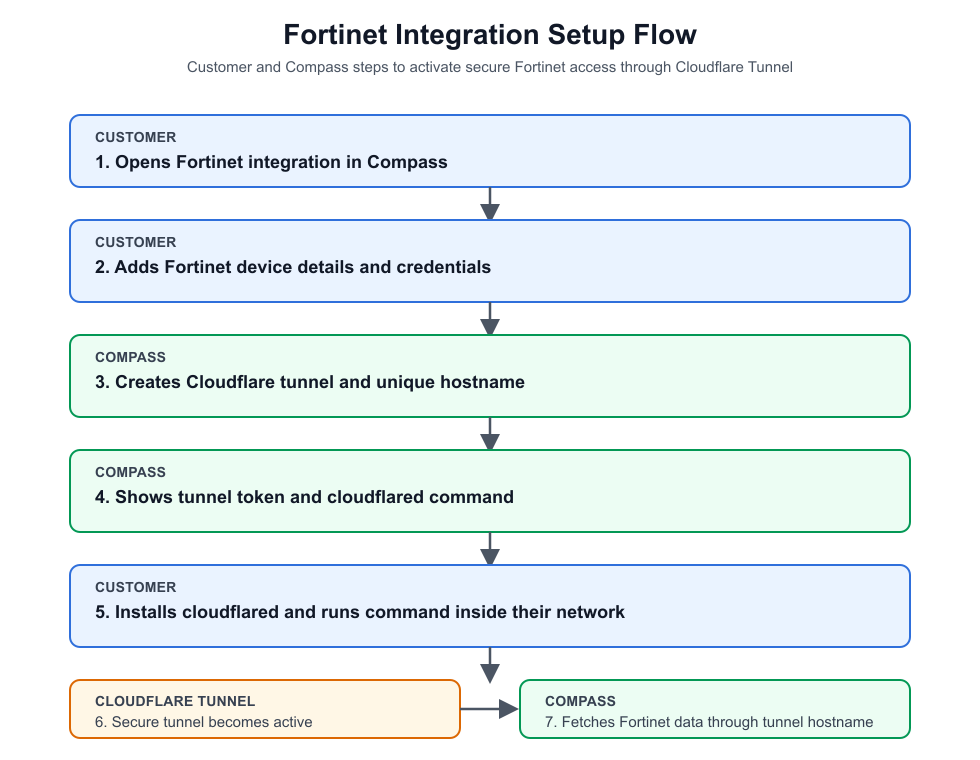

1. Customer Opens Fortinet Integration
The customer goes to:
Integrations -> Configurations -> Fortinet
They open the Fortinet OEM integration and start adding a new device.
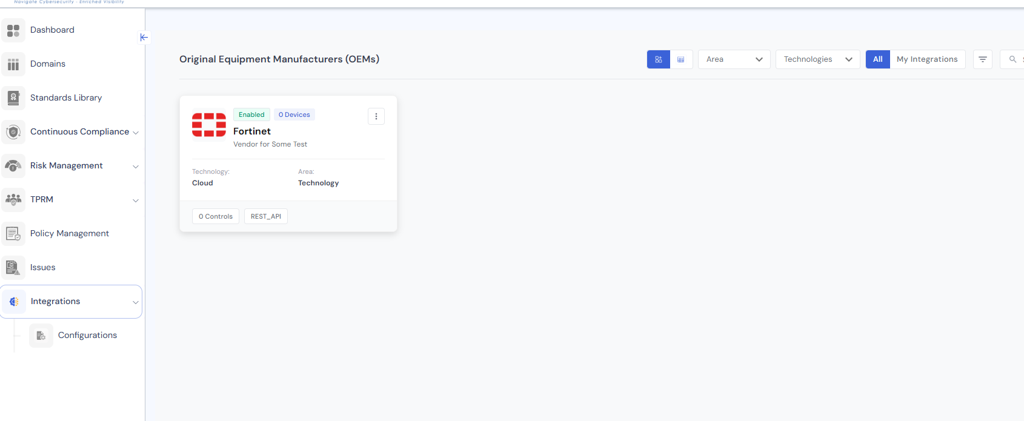
2. Customer Adds Device Details
The customer enters:
· Device name.
· Optional description.
· Fortinet username.
· Fortinet password.
These details identify the device and allow COMPASS to authenticate with Fortinet once the tunnel is active.
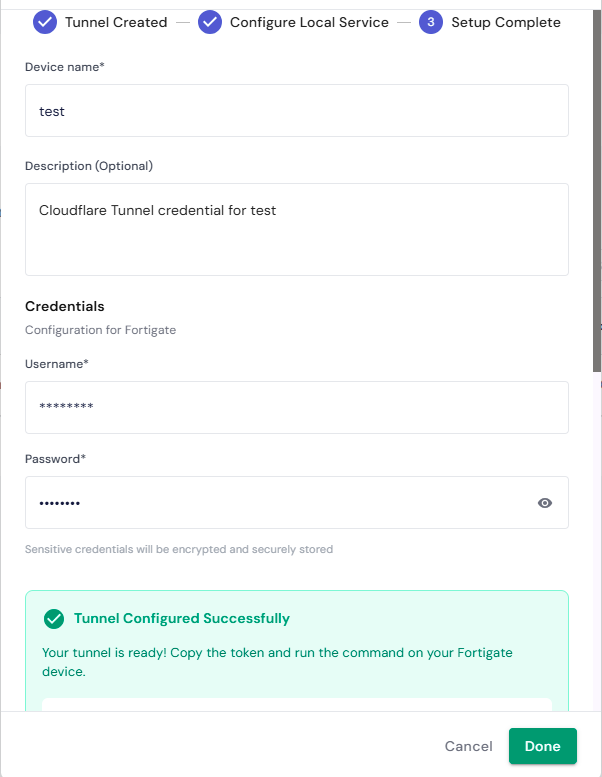
3. COMPASS Creates the Tunnel
When the customer clicks Initiate Tunnel, COMPASS creates the required Cloudflare tunnel configuration in the background.
COMPASS generates:
· A unique tunnel hostname, for example https://<tenant_name>-fortinet.COMPASS.cyraacs.com.
· A tunnel token.
· A command that the customer can run in their environment.
The customer also provides the local Fortinet service address, such as localhost and port 8080.
4. Customer Runs the Tunnel Command
After COMPASS creates the tunnel, it displays a command similar to:
cloudflared tunnel run --token <token string>
The customer must run this command inside their own network. This starts the secure connection between the customer environment and Cloudflare.
Step 1: Choose the Machine
The customer should first choose where cloudflared will run.
The selected machine must be able to access the Fortinet service locally using the configured IP/host and port, for example localhost:8080 or an internal Fortinet IP address.
Recommended options:
· The Fortinet server itself, if the customer allows installing software on it.
· A separate Ubuntu/Linux or Windows server in the same network.
· A jump server, utility server, or integration server that is always powered on and has network access to Fortinet.
For production, avoid using a personal laptop. The tunnel will stop if that laptop is shut down, disconnected, or moved outside the customer network.
Step 2: Install cloudflared
The customer installs a small Cloudflare connector called cloudflared on the selected machine. The machine can be Ubuntu/Linux, Windows, macOS, or a container host.
|
Customer machine type |
What the customer installs |
Where they run the COMPASS command |
|
Ubuntu / Linux server |
Install |
Run the command in the Linux terminal on the server that can reach Fortinet. |
|
Windows server |
Install |
Run the command in Command Prompt or PowerShell on the Windows server that can reach Fortinet. |
|
macOS machine |
Install |
Run the command in the macOS terminal. This is usually better for testing than production. |
|
Docker/container host |
Use the official |
Run the container on a host that can reach the Fortinet service locally. |
Cloudflare installation reference: cloudflared downloads
Step 3: Run the COMPASS Command
After cloudflared is installed, the customer uses the command shown in COMPASS.
-
Open the Fortinet device setup screen in COMPASS.
-
Copy the generated
cloudflared tunnel run --token <token>command.
-
Open Terminal, Command Prompt, or PowerShell on the selected customer machine.
-
Paste and run the command.
-
Confirm that the command starts successfully and keeps running.
Customer-friendly explanation:
-
Pick a server inside your network that can access Fortinet.
-
Install cloudflared on that server.
-
Copy the command from COMPASS.
-
Run the command on that server.
-
Once it is running, COMPASS can securely connect to Fortinet through the tunnel.
Step 4: Keep the Connector Running
The cloudflared connector should remain running after setup. If it is stopped, COMPASS will not be able to reach the Fortinet service through the tunnel.
For production, the customer should run cloudflared on a stable server and manage it like a normal background service or long-running process.
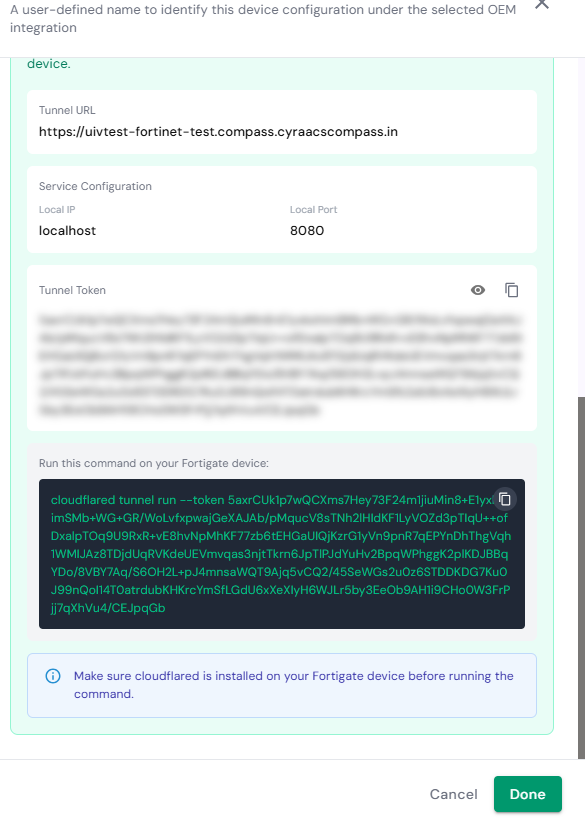
Why This Is Needed
· The tunnel connector needs local access to Fortinet, for example localhost:8080 or another internal IP and port.
· COMPASS does not connect directly to the customer's private network.
· The connector creates an outbound secure connection to Cloudflare, and COMPASS reaches Fortinet through that tunnel hostname.
· The customer does not need to open inbound firewall ports for COMPASS.
5. COMPASS Fetches Fortinet Data
After the tunnel is active, COMPASS uses the generated tunnel hostname to access the Fortinet service securely.
The data access path is: