

Why this is important
The following workflow combines AI intelligence with expert validation to convert compliance requirements into actionable, context-aware tasks. Once reviewed and approved, these tasks and their associated testing procedures become the benchmark for consistent, auditable, and continuous compliance evaluations.
Pushing Controls and tasks generation is a critical function that demands full focus. Once all controls are pushed to client instance, the Controls Review page is displayed. Watch this video to learn how to generate tasks.
-
To the top right click Generate Tasks.
NOTE: Tasks will be generated only for applicable controls.
-
The Answer to Access Tasks button comes up if there is any vendor, technology or IT related information that is missing. Click Answer to Access Tasks and choose the appropriate answers and Submit. The View Tasks button is activated.
-
To see the list of generated tasks, click View Tasks. This is where you can review and manage tasks for all controls. There are 2 views you can choose from the top of page:
Tasks with Controls view displays tasks with associated control details (shown below)
Tasks only view displays only task details. (shown after step 4)
-
Click on the arrow next to the task ID. Make sure you verify all tasks by checking the description and required documents list. Use the edit icon to make changes if needed.
-
Once you have verified each task, change the review status to either Approved or Rejected.
Approving a task will automatically trigger Control testing procedure (CTP).
-
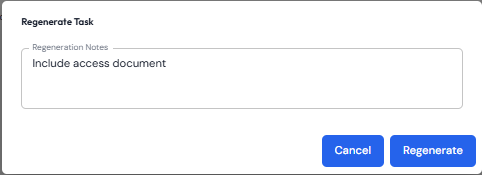
Under task name column, you can re-generate a task by clicking the regenerate icon, adding some notes and clicking Regenerate.
-
Once you are done approving all tasks, you can click Confirm & push to client at the bottom of the page.
NOTE: Rejected tasks will not be pushed to the client instance. If there is only one task associated with a control, and this task gets rejected, you will need to manually create a task in the client instance for the control.
-
Pushing approved tasks to client instance completes the setting of client environment. Compliance managers can access the client instance and proceed with next steps. The Environment manager can be used to push new standards according to the scope of work.
NOTE: As of now, controls can be pushed only once. Tasks can be approved and pushed in batches.
Outcome
-
Every control carries a testing procedure, how compliance is assessed. AI generates procedures from control type and environment.
-
Tasks get auto generated from selected controls in the context of the client environment.
-
GRC expert reviews all tasks and approves, edits or rejects it as appropriate.
-
Confirmed procedures lock in as the benchmark for all evaluations.