

Tasks Mapping & Evaluation
Why is this important?
AI mapper auto-maps documents to relevant controls and tasks. AI evaluator checks each control against its testing procedure. The human reviews the AI output and overrides where judgement differs.
Who can do this?
Task mapping and evaluation (Run Analysis) can be done only by the Compliance manager (service provider).
The Run Analysis button is an AI-powered functionality that:
-
Maps tasks to the required documents.
-
Evaluates tasks that are mapped.
The Compliance manager can follow these steps after the task owner uploads and submits documents for review. Navigate to Continuous Compliance >Tasks, all tasks will be displayed.
-
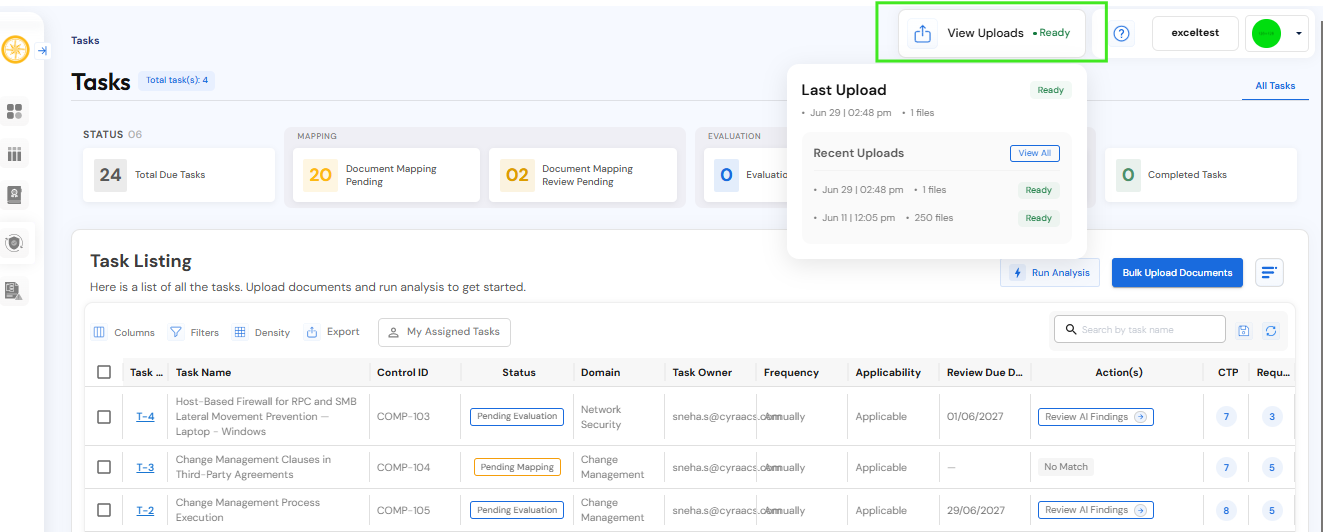
Once the Task Owner has uploaded documents in bulk or individually for tasks, the Compliance Manager can click View Uploads on the top right of the page and check if all uploads are complete.
-
Click Run Analysis to start mapping the documents. See this video:
-
Once mapping is done, the action column changes to Review Mapped Documents. Clicking this will bring up the Review Document Mapping pop up. See this video:
-
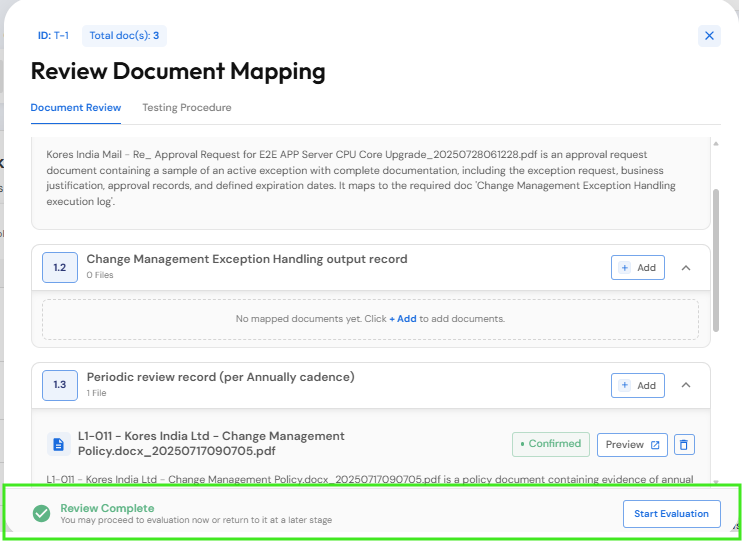
This is where human-in-the-loop review of mapped documents is done. Once the compliance manager is satisfied, click Complete Review. You will get a 'Review Complete' message with a Start Evaluation button.
-
Click Start Evaluation to trigger AI-powered evaluation. Once complete, the Actions column status changes to Review AI Findings. Clicking this brings up the Review Document Evaluation pop up. See this video:
-
Check all the AI-generated findings. Choose the appropriate radio button (top right) - Approve, Reject, Changes required. See this video:
-
Approved increases the overall compliance percentage of the control.
-
Reject reduces the compliance percentage of the control. The task owner can re-open the task, upload documents and go through all the above steps.
-
Changes required - the task owner has to make changes and upload more documents again and go through all the above steps.
Status & Action Columns Explained:
|
Step |
Role |
Status Term |
Actions Column |
Note |
|
Task owner |
Pending Mapping |
No match |
|
|
Task owner |
Pending Mapping |
No match |
|
|
Compliance Manager (CM) |
Pending Mapping |
Review Mapped Documents |
Opens ‘Review Document mapping’ pop up for human to approve or reject mapping. |
|
CM |
Pending Evaluation |
Document Mapping complete |
CM triggers via global Run Analysis button. |
|
CM |
Pending Evaluation |
Review AI Findings → |
Opens ‘Review Document Evaluation’ pop up. |
|
6a. CM approves |
CM |
Approved |
All actions completed |
|
|
6b. CM rejects |
CM |
Rejected |
All actions completed |
|
|
6c. CM requests changes |
CM |
Changes Required |
– |
– |
Status that needs the Task Owner’s attention: Rejected and Changes Required.
Note: You can map and validate documents multiple times for tasks, until the documents are verified and approved by clicking Run Analysis.
What happens when you click Run Analysis?
Every time you click Run Analysis, it searches the task list.
-
If tasks are yet to be mapped, it will start mapping.
-
If tasks are reviewed, it will start evaluating those tasks.
-
If the frequency of tasks is expiring in a week (from the time you click), it/they will be considered for analysis (mapping and evaluation).
Re-opening Rejected Tasks
You can re-open tasks that have been 'Rejected' and upload fresh evidence/documents to make these tasks compliant.
-
Navigate to Continuous Compliance>Tasks. Use filters to select task status as ‘Rejected’.
-
Click on the task ID to get to the task details page. The status shows Rejected with a 'Reopen' tag next to it. Click Re-open.
-
Under ‘Documents’ drag and drop or Upload documents.
-
The status changes to Pending Submission. Follow the steps under AI-assisted Mapping & Evaluation above for next steps.