

On COMPASS you can check the compliance history of any control. The compliance history gives you holistic view of all the compliance events for the control.
Why is this important?
Having the compliance history of a control helps you see compliance changes over a period of time. You can also fix tasks that have been non-compliant in a past (n-1) frequency.
This can be useful during audits and to view specific time range for traceability.
-
Navigate to Continuous Compliance>Controls and click on the relevant control ID.
-
The Control’s details page is displayed. Scroll down to see the Control Compliance History.
It displays latest compliance records with associated status, tasks and issues. You can use filters to view specific time range for traceability and audits or search by task name. See this video:
-
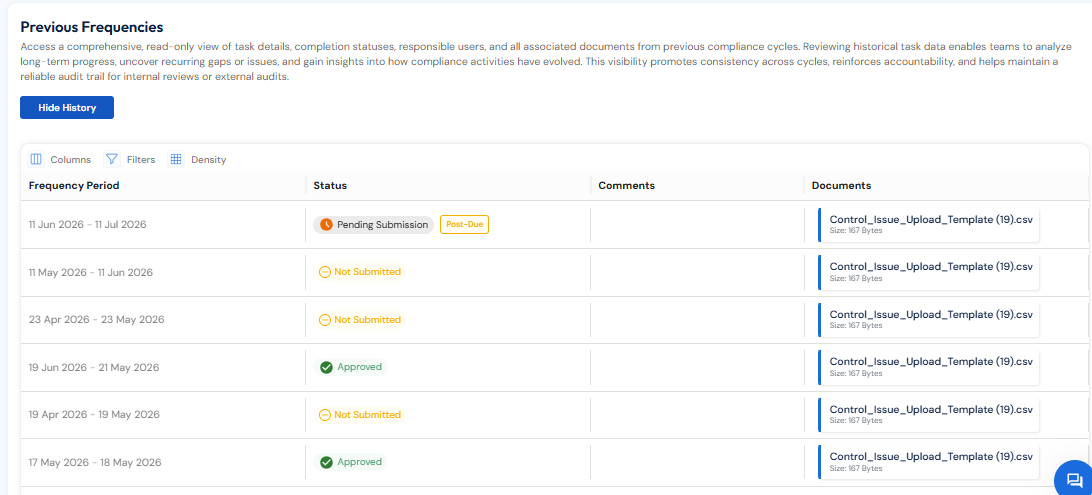
Clicking on any task takes you to the task details' page. The task details page also displays its history.
-
If the user is in N frequency he/she can make n-1 frequency compliant by reopening the n-1 task. You can click on the task, click Re-open (that is displayed next to status) and upload documents. The status then changes to pending submission which post review is approved or rejected.
For example, if the control is set to a daily frequency, you can ‘re-open’ only the task from yesterday’s frequency and upload fresh documents. The ‘re-open’ tag will not display for tasks with frequency before that. See this video to understand how to re-open a task from the past frequency.
Uploading Past Evidence
If you are migrating evidence/documents from another product or need to import evidence/documents manually as excel sheets, you can do so seamlessly through Historical Control Records.
-
Navigate to Continuous Compliance>Controls. Click on the relevant Control ID.
-
This opens the control details page. Scroll down to Historical Control Records and upload past documents and Save Changes. See the video below to understand the steps better.