The Create Client page displays 6 tabs at the top – Organization Information, Business Information, Compliance Requirements, IT Landscape, Infra and Security and Vendors. This is where all client data collection is done.
There are buttons on each tab page to move to the next one. You can also navigate by clicking on the top tabs.
Capture org structure, business units, and stakeholder contacts
Why this is important
When you onboard a new client, you need a clear picture of their environment — technology, operations, and compliance obligations. This is the foundation for everything that follows.
Organization Information tab: Enter relevant information gathered from the client here – includes Infrastructure hosting, data centre, disaster recovery centre, product subscription etc.
a) You can fill in details, choose the product subscription, and click Continue to Business Information to continue with the next tab details.
b) Alternatively, click Import from Excel and upload the excel file to quickly populate all tab details.
c) Click Submit and Create Client, to quickly create the client with minimal details and fill out the other tabs later.
d) If you have followed step c, you can assign a point of contact for the Client. Click Assign POC, enter POC details and Save.
Record products, services, data, geography, and risk considerations
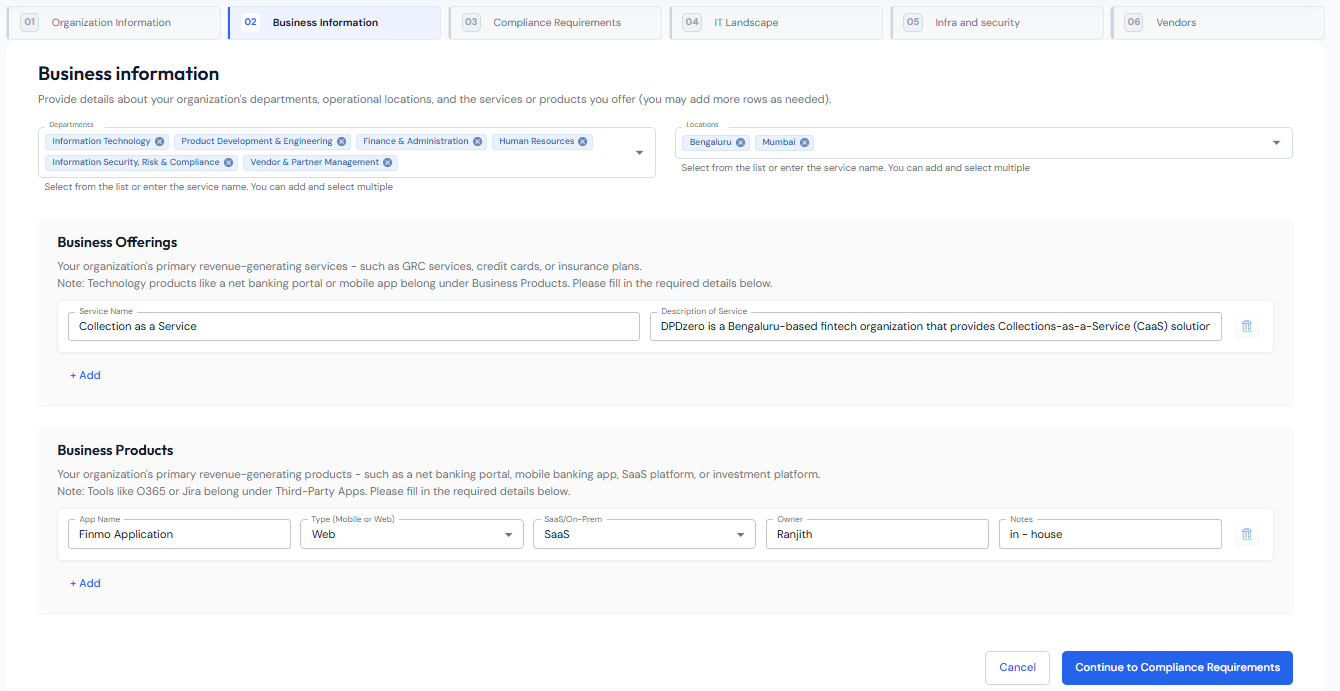
Business Information tab: Enter department related information here, operational locations, business offerings, products and related details.
Capture the client's vendor details
Why this is important
When you onboard a new client, you need a clear picture of third-party vendors they engage for assessing risk and building a tiering framework.
Vendors: Enter information about any external vendors that support the organization operations here.
Client Infrastructure & Security Inventory
Why this is important
Capture the technologies the client runs. This inventory powers the integration layer —enabling automatic evidence collection later for relevant tasks.
Capture all technologies — cloud, SaaS, security tools, and infrastructure here.
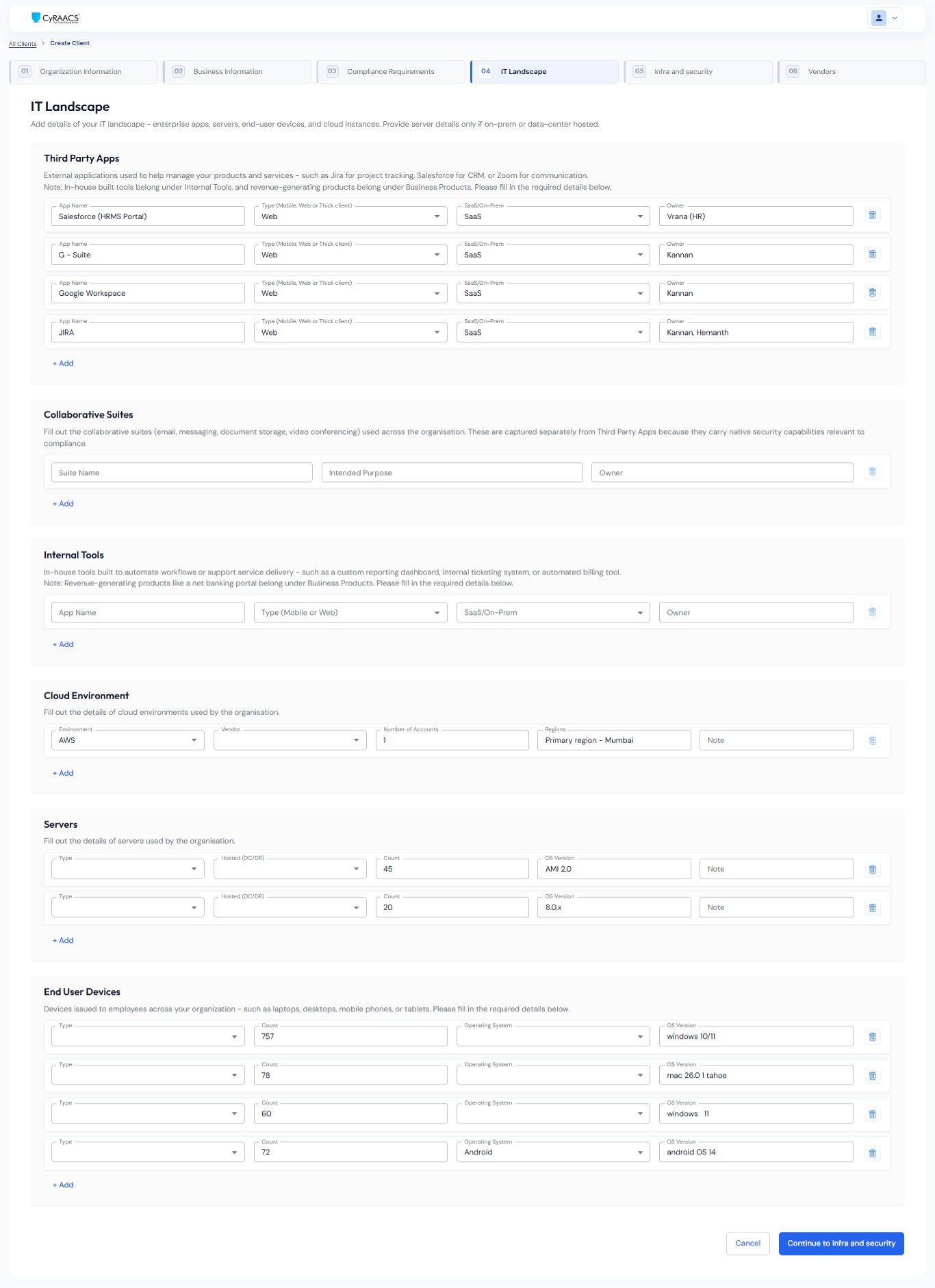
IT Landscape tab: Enter third party apps, collaborative suites internal tools details, cloud environment details, server details and end user devices used across the organization.
Infra and Security tab: Enter/select details of the technologies used for storage, computing, security, status, OEMs, etc. used in the organization. These details are crucial to setting up integrations.
IMP INFO: Make a note of the technologies that are integration-ready within COMPASS. Once integrations are configured, tasks associated with these technologies, auto-fetch artifacts. No manual evidence collection is needed for integrated technologies. Compliance-relevant data seamlessly contributes to the overall compliance percentage.
Select Relevant Standards
While capturing the client environment, it is vital to understand their compliance requirements.
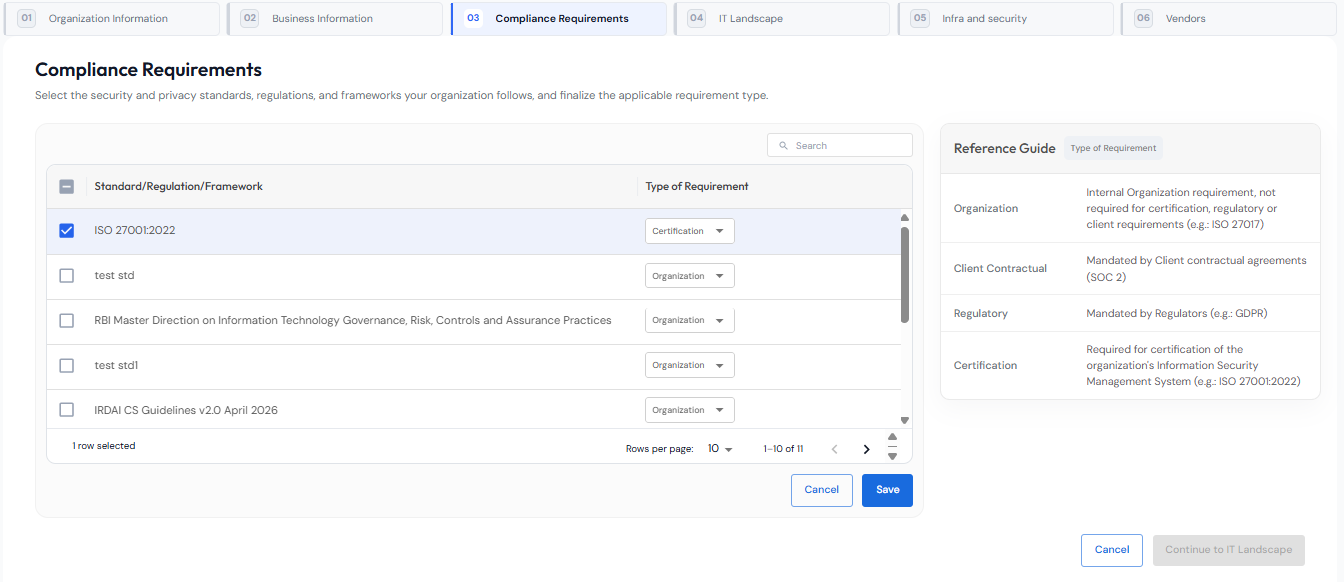
Compliance Requirements tab: Select the compliance standards and frameworks the company or organization follows and related requirements.
Click Save & Finish Setup once you are done filling up all details. This client information will define the next steps.
OUTCOME
A structured, documented view of the client's environment, with applicable standards that will drive the right controls and tasks— nothing generic, everything contextual.
Glossary of Terms (Client information tabs)
Business Offerings: These are your organization's primary revenue-generating services. For example, this could include offerings like GRC services, credit cards, or insurance plans. Please fill in the required details below.
Business Products: These are your organization's primary revenue-generating products. For example, this could include technology products like a net banking portal, a mobile banking app, or an investment platform or a SAAS platform. Please fill in the required details below.
Third-Party Apps: These are external applications used across your organization to help manage your products and services. For example, this could include tools like JIRA for project tracking, Salesforce for CRM, or Zoom for communication. Please fill in the required details.
Internal Tools: These are tools built in-house to automate workflows or support the delivery of your products and services. For example, this could include a custom reporting dashboard, an internal ticketing system, or an automated billing tool. Please fill in the required details.
End User Devices: These are the devices used by employees within your organization. For example, this could include laptops, desktop computers, mobile phones, or tablets issued to staff. Please fill in the required details below.